Physical Address
304 North Cardinal St.
Dorchester Center, MA 02124
Physical Address
304 North Cardinal St.
Dorchester Center, MA 02124

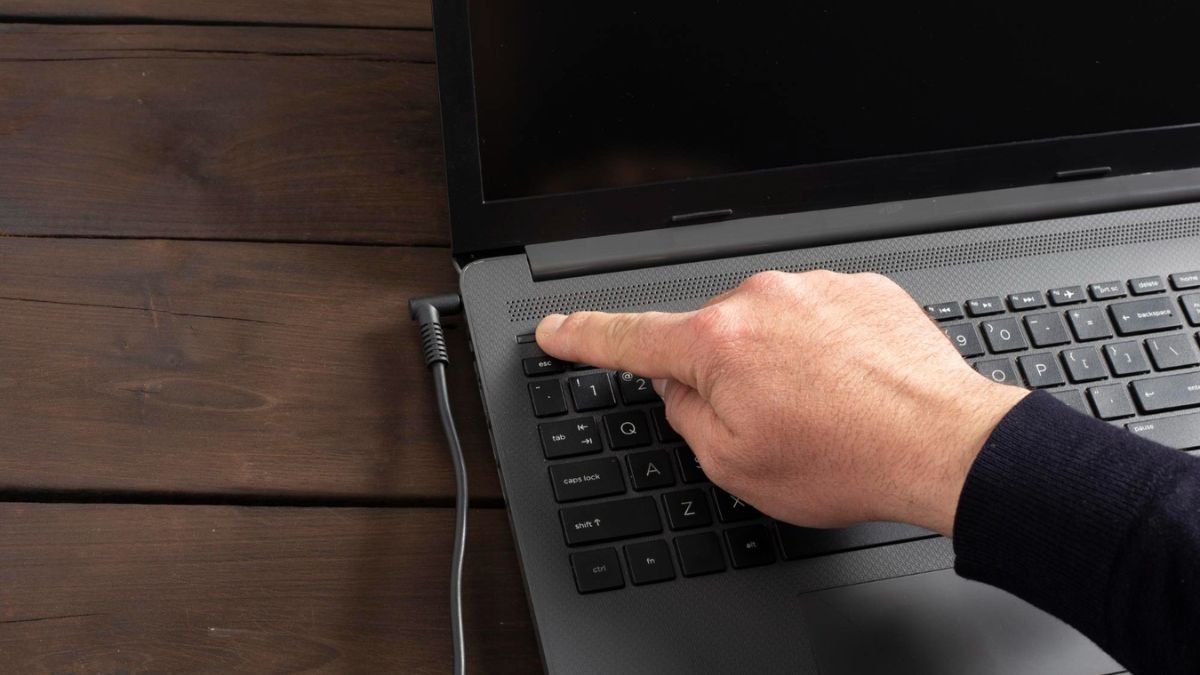
Shutting down your computer is something that you do almost every day – but going through menus every time can really seem slow and redundant. That’s why it pays to be aware of a quick fix when your computer slows down, by using a shortcut.
Whether you are one of those who are frustrated by not being able to always use the keyboard shortcut to take a picture, or you would like to have one click desktop button to quickly shut down your system, then Windows has got several options for you to quickly shut your system down. This guide deals with how to do so at best, including the creation of your own shutdown shortcut.
This is the easiest to understand the shutdown shortcut, and is by far, the most common.
Steps:
This is a shortcut, which opens up the shut down dialog box instantly.
A faster multi-key shortcut:
This directly shuts down your pc by power menu.
Useful when your system is slow and unresponsive:
A quick sequence:
This helps in ensuring that all the apps are minimized before the system shuts down.
If what you want is to turn off the computer down on the spot with a click of the mouse, you can define your own shortcut.
Steps:
Now, if you double-click on this shortcut, it will immediately switch off your PC.
In this way, you can also modify the icon by going to Properties -> Change Icon.
Command Prompt
Run Command
Method Best For
Alt + F4 Everyday quick shutdown
Win + X, U, U Fast keyboard users
Desktop shortcut One-click shutdown
Ctrl + Alt + Delete Frozen system
The use of a shutdown shortcut will help you to make your everyday use of your computer faster and more efficient. Whether you want keyboard shortcuts such as Alt + F4 or want it to have a one-click button on the desktop, Windows gives you the option to make it flexible.
Creating your own shutdown shortcut is especially helpful if you want to go to your shutdown without having to deal with menus. Once you start out using these methods, you’ll start to realize just how much time and work they’ll save.
Just get used to these shortcuts, and you never have to go through the various processes just in order to switch off the PC that you are using again.
Also Read: Yellow Tint Display: A Common but Fixable Screen Issue